
CPU cores are among the most important and frequently discussed specifications of a processor. As the brain of a computer, the CPU has a major impact on overall system performance, making it a key factor when choosing a laptop or desktop computer. Modern processors also include hardware threads, often called logical processors, which allow CPU cores to handle multiple tasks more efficiently and improve overall responsiveness.
Before diving into CPU cores and threads, it’s helpful to understand what a CPU actually is. CPU stands for Central Processing Unit. Also known simply as a processor, the CPU is an electronic component installed on the computer’s motherboard. It works closely with other hardware components, including memory (RAM), storage devices, graphics processors, and input/output peripherals. The CPU’s primary role is to execute program instructions, process data, and coordinate system operations, ensuring that your applications and operating system run as quickly and efficiently as possible.
What is a CPU Core?
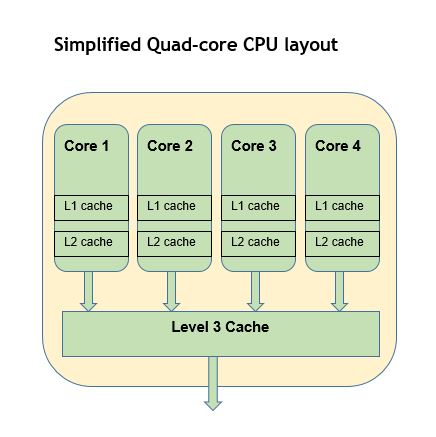
Think of a CPU core as one of the CPU’s “arms” that can perform work independently. The more cores a CPU has, the more tasks it can handle simultaneously. Each core can process its own stream of instructions while other cores work in parallel on different instruction sets, potentially for entirely different programs (see diagram below). This parallel processing capability can significantly improve overall system performance, enabling workloads to be completed much faster than on a single-core processor.
What is a hardware thread (or a logical processor) vs a software thread?
A logical processor, also known as a hardware thread, is an execution context provided by a CPU core. Technologies such as Intel’s Hyper-Threading (Intel’s implementation of Simultaneous Multithreading, or SMT) allow a single physical core to expose multiple logical processors to the operating system. This enables the core to work on multiple software threads at the same time and make better use of its internal resources.
It is important to understand that logical processors are not additional physical cores. Hardware threads running on the same core share many of the core’s resources, including execution units and caches. As a result, the performance gain from SMT is typically much smaller than adding an entirely new physical core. This is why a processor advertised as “4 cores, 8 threads” contains four physical cores, each exposing two logical processors.
The term “thread” can be confusing because it is used in both hardware and software contexts. A hardware thread (logical processor) is an execution context provided by the CPU, while a software thread is an independently schedulable sequence of execution created by a program. The operating system maps software threads onto available hardware threads for execution.
A multithreaded application is simply a program that creates and runs multiple software threads. This should not be confused with Simultaneous Multithreading (SMT), which is a hardware feature that allows a single CPU core to execute multiple software threads more efficiently.
P-Cores vs E-Cores: Understanding Modern Hybrid CPU Architecture
What Are Performance Cores (P-Cores)?
Performance cores (P-cores) are CPU cores designed for demanding workloads that benefit from maximum performance. Applications such as gaming, video editing, software development, and 3D rendering typically perform best on P-cores. These cores generally operate at higher clock speeds, have more execution resources, and consume more power than efficiency cores when running intensive workloads.
What Are Efficiency Cores (E-Cores)?
Efficiency cores (E-cores) are designed to deliver good performance while using less power. They are well suited for background processes, web browsing, office applications, media playback, and other tasks that do not require maximum single-threaded performance. Although E-cores typically run at lower clock speeds and have fewer resources than P-cores, they provide excellent performance per watt and can handle many workloads surprisingly well.
How Hybrid CPU Architecture Works
This combination of P-cores and E-cores is known as a hybrid CPU architecture. Rather than treating every core as identical, a hybrid design allows different types of workloads to run on the cores best suited for them. Performance-sensitive tasks can run on P-cores, while background or less demanding tasks can run on E-cores, improving both responsiveness and energy efficiency.
Intel Thread Director and Smart Workload Scheduling
Modern Intel processors use technologies such as Intel Thread Director to help the operating system schedule workloads on the most appropriate cores. By combining powerful P-cores with energy-efficient E-cores, hybrid processors can deliver strong performance when needed while reducing power consumption whenever possible.
Which CPU Manufacturers Use Hybrid Cores?
Hybrid CPU designs are now used by several major processor manufacturers. Intel popularized the terms Performance Core (P-core) and Efficiency Core (E-core) with its hybrid desktop and laptop processors. Apple uses a similar approach in its Apple Silicon chips, combining high-performance cores with high-efficiency cores, although it uses different terminology. Qualcomm and other ARM-based chip designers also employ heterogeneous CPU architectures that mix high-performance and power-efficient cores to balance speed, responsiveness, and battery life.
Here is a list of all Intel processors which link to details on the number of each of their cores: https://www.intel.com/content/www/us/en/products/details/processors.html
How many CPU cores do I need?
Choosing a laptop with a CPU that can handle what you need to do depends on what you use your laptop for. Here is a general guidance at the time of this writing. We will use three user personas that should cover most users – Home User, Business User and Gaming User. While they are pretty much self-explanatory you can learn more here for in-depth explanation.
- Home User: 2 to 4 cores / 4 to 8 threads
- Use: Web browsing, email client, word processors such as Microsoft office, etc.
- Business User: 4 to 6 cores / 8 to 12 threads.
- Use: Office/job use, specialty software programs, the need to run multiple programs simultaneously.
- Gaming User: 8 to 12 cores / 16 to 24 threads
- Highly demanding software such as games, video editing, etc.
Clock speed is another important spec, however high clock speed per core but less number of cores than recommended is not necessarily good. In general, threads are a multiple of cores, because they are an extension of cores. Depending on how you plan to use your laptop, a combination of P-cores and E-cores can be extremely beneficial. It is also important to note that choosing the right number of CPU Cores alone is not sufficient, there are other specs you need to consider based on your user persona, such as RAM, GPU, Clock speed, etc.
How do I find Cores and Threads in my PC / Mac?
Windows
This should work for most recent Windows versions, however there might be slight variation on how you get to the specs. Here’s how you find Cores and threads for your PC:
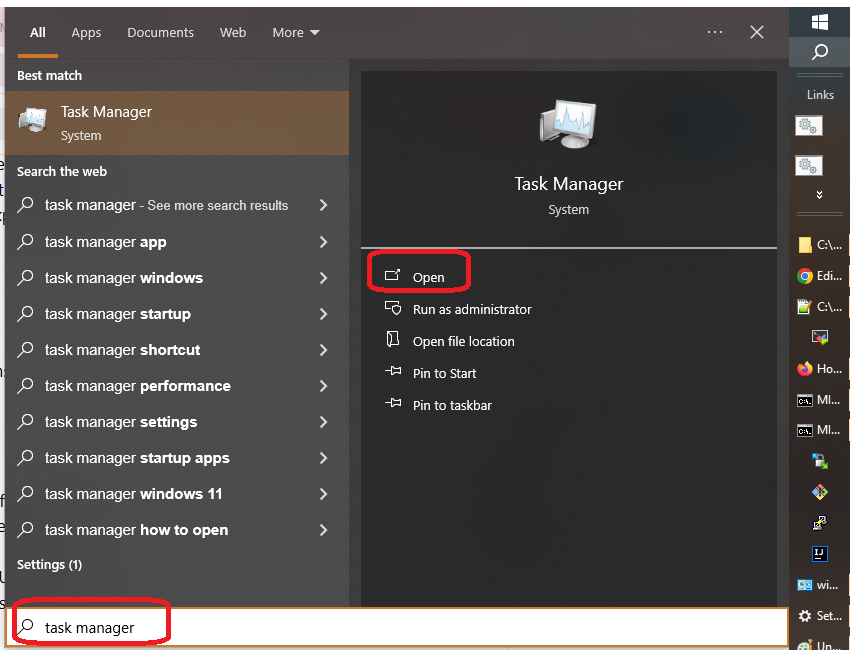
- Open Windows search and type “Task Manager”, click “open” link to launch Task Manager
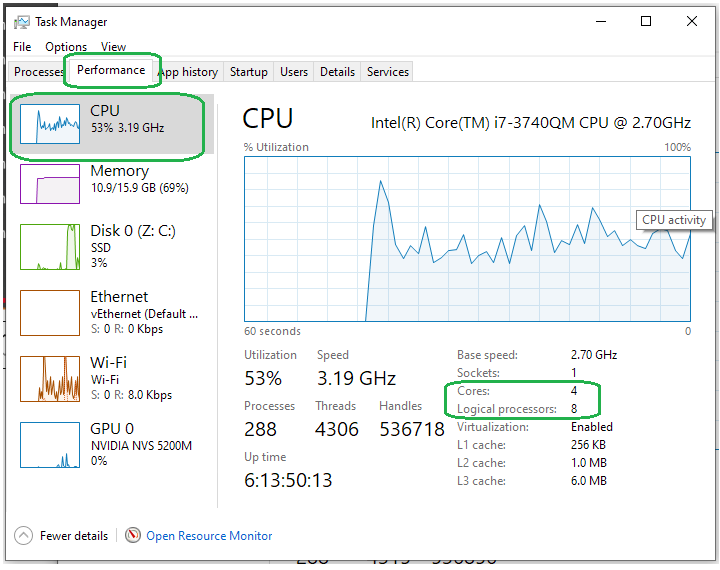
2. Once you have Task manager window launched, click on tab “Performance” and select CPU button on the left, to view the CPU Cores and Threads (Shown as “Logical Processors” in the below screenshot). As explained earlier, do not confuse software threads with the hardware thread.
Apple Mac
While there are couple different ways to get to hardware configuration details to view the number of cores, the following instructions should work for most Apple Mac computers.
- Click the Apple logo in the top-left corner of your screen, and it should open a menu. Click on the menu item “About this Mac”. That should launch a popup. See screenshot below
- Next, click the button “more info” that should be on the popup. That should launch a window that shows “System Information”
- On the left pane select “Hardware” and you should see “Hardware overview” on the right pane, which has the “number of cores” as one of the items.
NOTE: The other way to get to “System information” is to start with Apple icon on the top left > “system settings” > General > About > System Report.
Go to “More info”
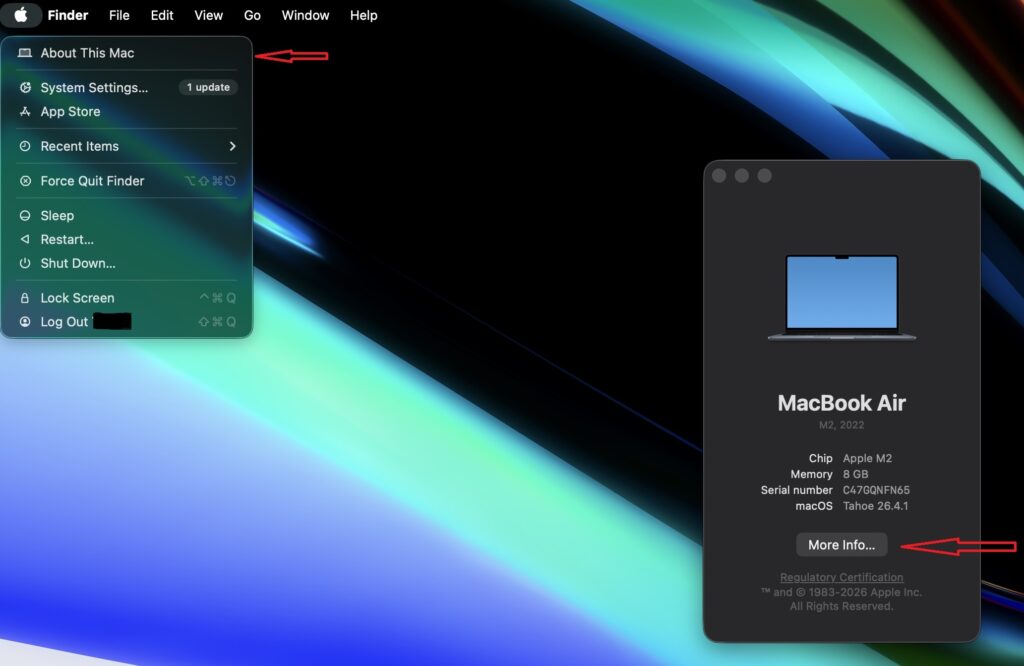
Find Cores
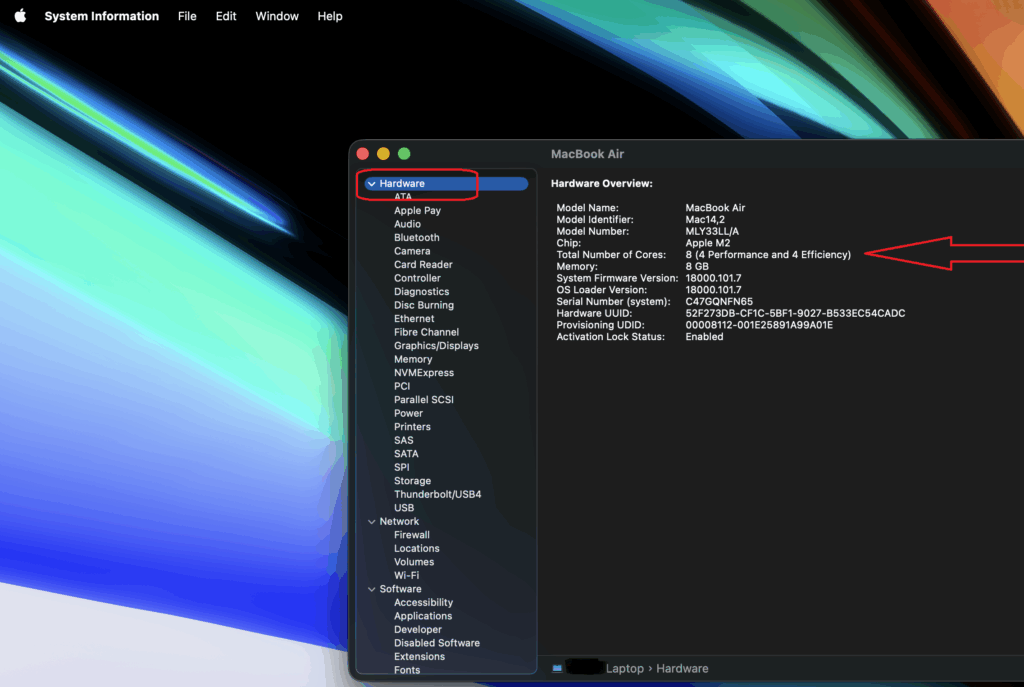
How to find Hardware threads / logical processors
To find Hardware Threads or logical processors, open command and type lscpu. That should print a number of details, but look for something like “Thread(s) per core“. This will give how many hardware threads each core has and multiply that with the number of cores to get total threads.